
Install IPTV on Kodi?
To install IPTV on Kodi, start by getting your M3U playlist link from your IPTV provider. If you also have a TV guide link

On this page (6)
To install IPTV on Kodi, start by getting your M3U playlist link from your IPTV provider. If you also have a TV guide link (EPG/XML), keep it ready too. Then open Kodi and check that your version is 18 (Leia) or newer by going to Settings (gear icon) > System Information.
Next, in Kodi go to Settings > Add-ons > Install from repository > PVR clients, install “PVR IPTV Simple Client”, and open its settings. Choose “Remote Path”, paste your M3U link, add the EPG link if you have one, press OK, enable the add-on, and restart Kodi. Once you’ve completed this step, you can explore your iptv subscription options in canda and begin enjoying your preferred channels.
1. Get Kodi and Your IPTV Details Ready

Before you start, check three things:
- Kodi is installed and runs properly on your device.
- You have a valid M3U link or M3U file from your IPTV service.
- If possible, you also have an EPG (TV guide) link in XML format to show the programs.
Keep your M3U link and EPG link somewhere easy to copy, because you will paste them into Kodi.
2. Install the IPTV Add-on in Kodi
- Open Kodi.
- Click the Settings (gear) icon.
- Go to “Add-ons”.

- Choose “Install from repository”.

- Open the “PVR clients” category.

- Select “PVR IPTV Simple Client”.

- Click “Install” and wait for the confirmation.
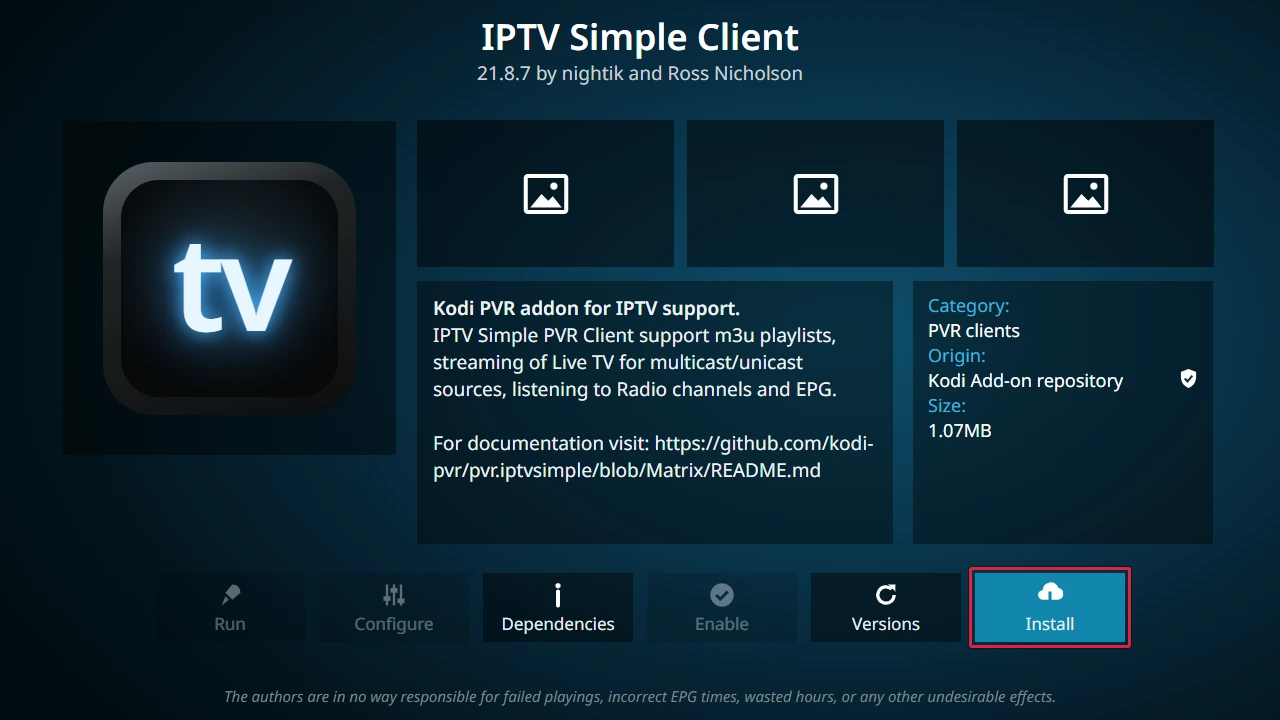
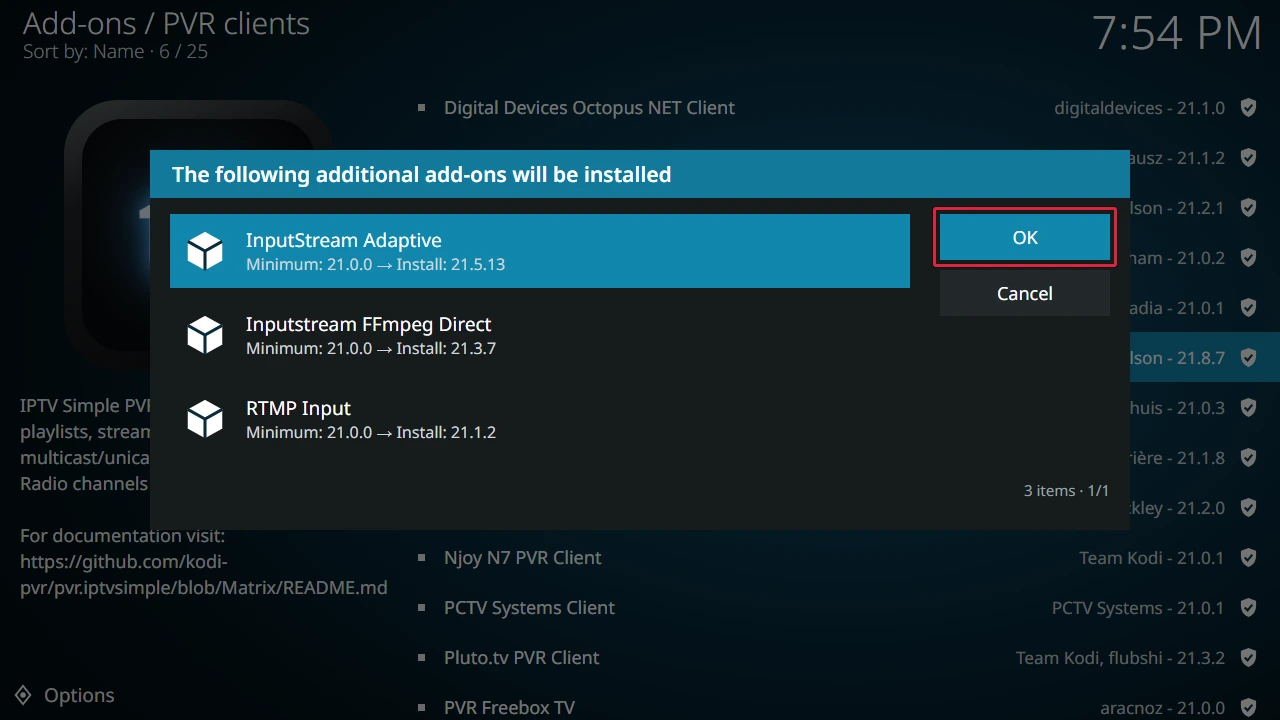
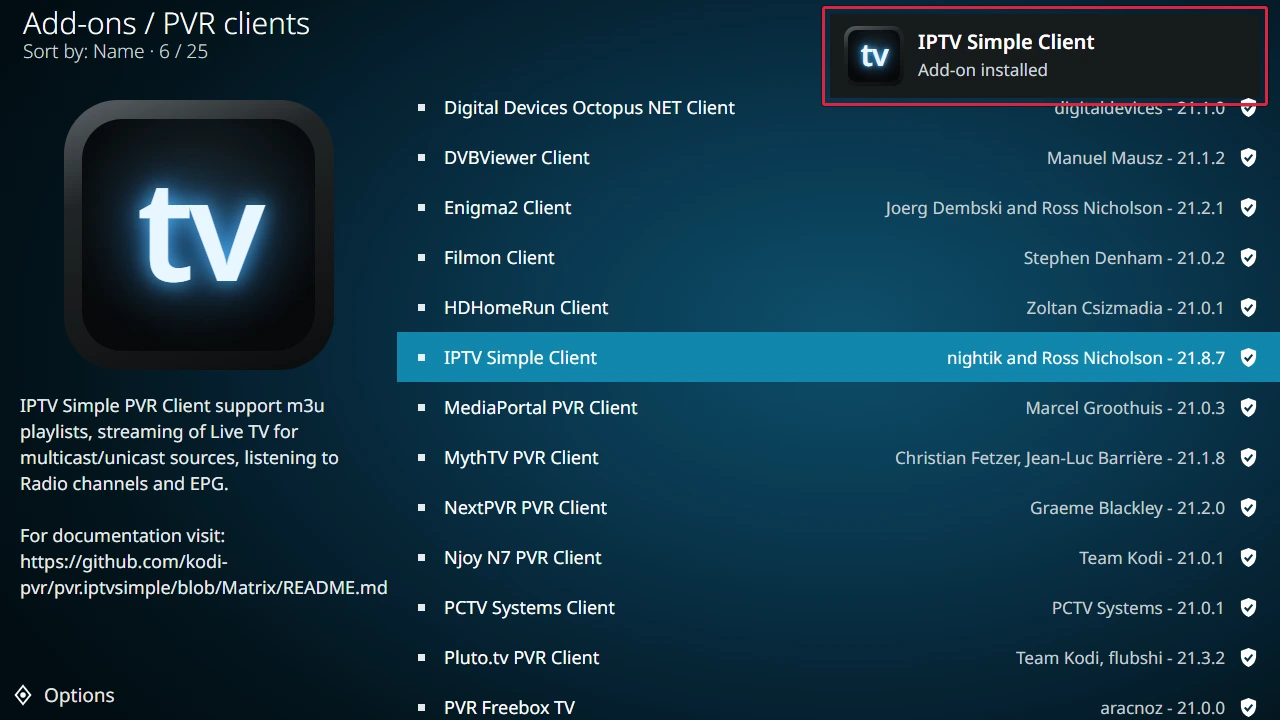
This add-on is official and lets Kodi play IPTV playlists.
3. Add Your M3U Playlist
- Go back to Settings → Add-ons → My add-ons → PVR clients.
- Open “PVR IPTV Simple Client”.

- Click “Configure”.


- In the General tab:
- Choose “Remote path” if you have an M3U URL.
- Or “Local path” if you have an M3U file on your device.

- Paste your M3U link or select your file.

- Confirm with “OK”.

At this point, Kodi knows where to find your channel list.
4. Add the TV Guide (Optional but Recommended)

- Go back to the “PVR IPTV Simple Client” settings.
- Open the EPG tab.
- Choose “Remote path” if your guide is online.
- Paste the XML URL of your TV guide.
- Confirm with “OK”.
The guide shows the name of each show, its time slot and what comes next.
5. Restart Kodi and Watch Your Channels
- Close Kodi completely.
- Open Kodi again so it loads the channels.
- Go to the main menu.
- Open the “TV” section.
- Go to “Channels” to see your IPTV list.

- If you added an EPG, open “Guide” to see the programs.

You can now watch your IPTV channels directly in Kodi.
Frequently Asked Questions
Is IPTV on Kodi legal in my country?
You must check your local laws, because IPTV legality depends on content licenses. Legal providers that own or rent broadcasting rights are allowed, but unauthorized streams break copyright laws. Always look up the rules in your country before using IPTV.
Can I record live TV with Kodi IPTV?
Yes, recording is possible using PVR add-ons. You need to set up your PVR client, choose where recordings will be saved, and then press “record” while watching a channel. Some streams may block recording, so results depend on the source and add-on used.
Does IPTV on Kodi work with a VPN?
Yes, Kodi works well with most VPN services. Just turn on your VPN before opening Kodi. If streaming becomes slow, you can try Smart DNS instead, which is usually faster while still bypassing region blocks.
How fast does my internet need to be for IPTV?
For HD channels, you need at least 5 to 10 Mbps. For 4K, you need 25 Mbps or more. It’s best to have extra speed to avoid buffering. Always test your internet before streaming.
Can I use one IPTV account on several devices at the same time?
That depends on your provider. Most plans allow only one or two devices at once. If you want to use more devices at the same time, you usually need to upgrade your plan or buy extra connections.
Read more about IPTV on Xbox.


Your free trial login works in every app in this article. Twelve hours of the full service, no card, then choose a plan or stop.
- No credit card
- Login by email in minutes
- Setup guides for every device