
IPTV on iPhone and iPad: Apps and Setup
Watch IPTV on iPhone or iPad: the best App Store players, how to add your M3U or Xtream Codes login, and tips for the iPad's bigger screen.

On this page (8)
To watch IPTV on an iPhone or iPad, install an IPTV player from the App Store (GSE Smart IPTV, Smarters Player Lite or iPlayTV), then add your provider’s M3U playlist URL or Xtream Codes login. The channels, movies and series load into the app and play over Wi-Fi or mobile data. No jailbreak is needed.
iPhone and iPad run the same apps, so one guide covers both: the five steps below work on either device, and the iPad section after them covers what changes on the bigger screen. All you need besides the app is an active subscription. If you don’t have one yet, try our service free before you pay.
1. Choose an IPTV Player App from the App Store
An IPTV app is only a player: it shows the channels your provider sends, it doesn’t come with any. Pick one that reads both M3U playlists and Xtream Codes logins so it works with any subscription. The App Store apps that do this best:
| App | Price | Logins | Best for |
|---|---|---|---|
| GSE Smart IPTV | Free, optional in-app upgrade | M3U, Xtream Codes | The most settings: EPG sources, playlists, parental lock |
| Smarters Player Lite | Free | Xtream Codes, M3U | The App Store version of IPTV Smarters: simple Live / Movies / Series layout |
| iPlayTV | Paid | M3U, Xtream Codes | A clean, Apple-style interface that also runs on Apple TV |
| IPTVX | Paid | M3U, Xtream Codes | Same app across iPhone, iPad, Mac and Apple TV |
1. Open the App Store and search for the app by name. On iOS, IPTV Smarters is listed as Smarters Player Lite, not “IPTV Smarters Pro”.
2. Check the “Compatibility” line on the app page against your iOS or iPadOS version, and the date of the last update: a player that hasn’t been updated in a year is likely to break after the next iOS release.

3. Tap Get (or the price) and confirm with Face ID or your password. The app appears on your home screen.
2. Gather Your IPTV Credentials
1. Open the welcome email your provider sent after you subscribed, or log in to your account dashboard.
2. Copy your M3U playlist URL. It usually looks like: http://provider.com:port/get.php?username=XXX&password=XXX&type=m3u_plus.
3. Or note your Xtream Codes details: server URL, username and password. Xtream Codes is the better choice when the app offers it: movies and series are sorted for you and the program guide loads on its own.
4. Keep the details in the Notes app or your password manager so you can paste them instead of typing. If you can’t find them, here is where your playlist URL comes from.
3. Add Your IPTV Playlist to the App
1. Open the player and look for Add Playlist, Add New User or the + icon. In GSE Smart IPTV it’s under Remote Playlists (M3U) or Xtream Codes API.

2. Choose the login type: M3U URL to paste a playlist link, or Xtream Codes API to enter the server, username and password in separate fields.

3. Give the playlist a name (for example “My IPTV”), paste your details and check them: one wrong character and no channel will load. iOS sometimes adds a space at the end of pasted text, so delete it if there is one.
4. Tap Add or Login. A playlist with thousands of channels can take 10 to 30 seconds to load the first time.

4. Browse Channels and Start Watching
1. Channels are grouped into categories (Live TV, Movies, Series, Sports, News). Tap one to start playback.
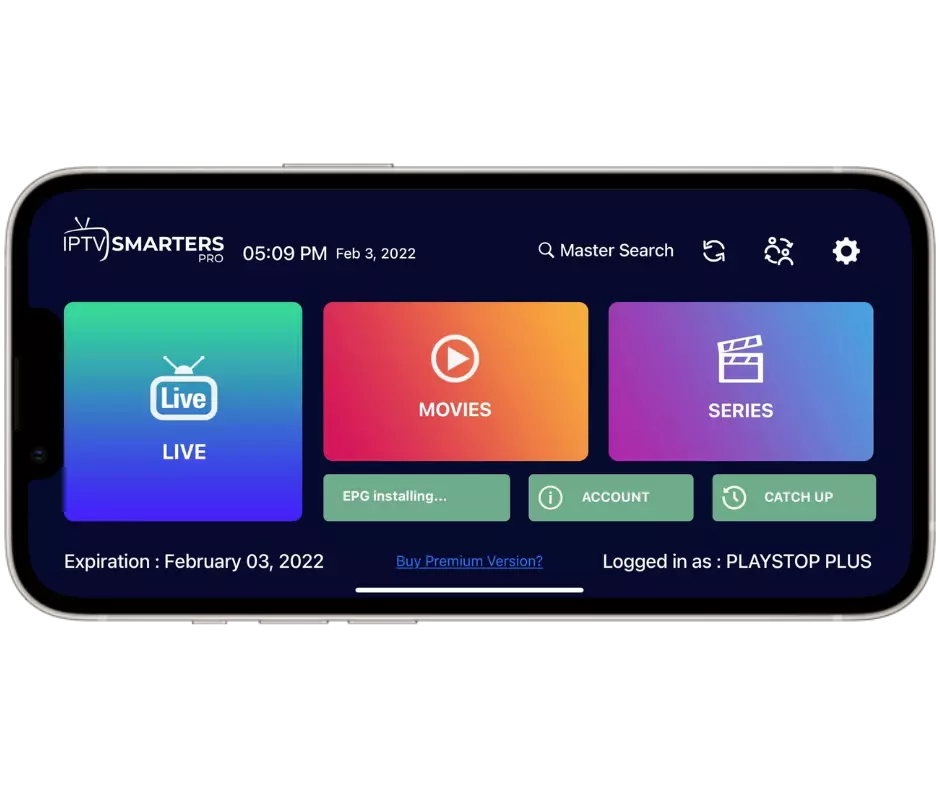
2. Open the EPG (program guide) to see what’s on now and next. If it stays empty, see why the IPTV EPG doesn’t load.
3. In most players, long-press a channel to add it to Favorites, so you don’t scroll through hundreds of channels each time.
4. During playback, tap the screen to change the aspect ratio, subtitles or audio track.
5. Optimize and Troubleshoot IPTV on iPhone
1. Use Wi-Fi for HD and 4K. Mobile data works, but an hour of HD can use up to about 3 GB; see how much data IPTV uses before you watch a game on the go.
2. If a channel buffers or won’t start, close the app from the app switcher and reopen it. If it keeps happening, change the stream format in the player’s settings (HLS instead of MPEG-TS, or the reverse).
3. Keep the app updated from the App Store: most “it stopped working after the iOS update” problems are fixed by the next app version.
4. If your internet provider slows down streaming, connect a VPN app first, then open the player.
5. If every channel goes down at once, the problem is on the subscription side, not the iPhone: check that your account is active before changing any settings.
Watching IPTV on iPad
The setup is the same as on iPhone: GSE Smart IPTV, Smarters Player Lite, iPlayTV and IPTVX are universal apps, and a paid app bought on your iPhone is free on an iPad signed in to the same Apple ID. What changes is how you use the larger screen.
- Program guide side by side. On iPad most players show the channel list, the EPG grid and the video on one screen, which makes channel surfing much faster than on a phone.
- Picture in Picture. In players that support it, swipe up to the home screen while a channel is playing and the video keeps running in a small window you can move around.
- Split View and Stage Manager. Keep the game on one side and the scores or a chat on the other.
- Wi-Fi only iPads. Without a cellular model, you need Wi-Fi or your iPhone’s Personal Hotspot: IPTV is live, so it streams the whole time you watch.
Watching on Your TV from an iPhone or iPad
Use AirPlay to send the picture to an Apple TV or an AirPlay-compatible smart TV (recent Samsung, LG, Sony and Roku models): open Control Center, tap Screen Mirroring and pick the TV. For daily viewing on the big screen, installing the player directly on the TV is more reliable; see IPTV on Apple TV or IPTV on smart TVs.
Frequently Asked Questions (FAQ)
Do I need to jailbreak my iPhone to watch IPTV?
No. GSE Smart IPTV, Smarters Player Lite, iPlayTV and IPTVX are all on the official App Store and work on a standard iPhone or iPad.
What is the best IPTV app for iPhone?
For a free app, GSE Smart IPTV (more settings) or Smarters Player Lite (simpler). If you’re willing to pay once, iPlayTV has the cleanest interface and also runs on Apple TV. Step-by-step setup for GSE is in our GSE Smart IPTV guide, and for Smarters in the IPTV Smarters guide.
Why can’t I find IPTV Smarters Pro on the App Store?
On iPhone and iPad, the app is published as Smarters Player Lite. It logs in with the same Xtream Codes details as IPTV Smarters Pro on Android or Firestick.
Can I watch IPTV on iPhone using mobile data?
Yes. SD channels play well on 4G and 5G; HD and 4K use more data and may buffer on a weak signal. Wi-Fi is the better choice for long viewing.
Can I use the same subscription on my iPhone and iPad?
You can install it on both, but how many can play at the same time depends on the number of connections in your plan. See watching IPTV on several devices.
Why are my IPTV channels not loading on iPhone?
Check the playlist URL or login for typos and a trailing space first. If they’re correct, switch between Wi-Fi and mobile data, then remove and re-add the playlist. If nothing loads anywhere, contact your provider.


Your free trial login works in every app in this article. Twelve hours of the full service, no card, then choose a plan or stop.
- No credit card
- Login by email in minutes
- Setup guides for every device